
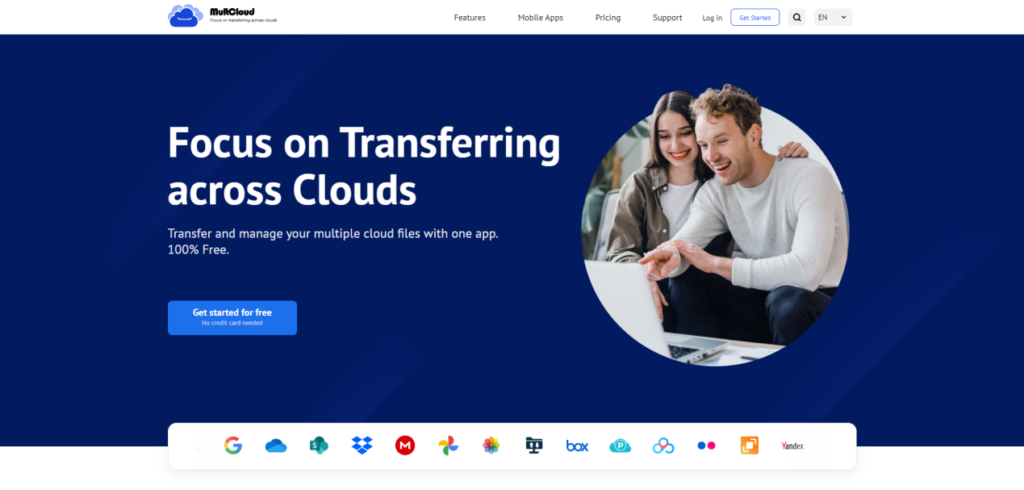
Switching Google Drive accounts can feel like moving to a new house you want to take everything with you but without the stress. Whether you’re changing jobs, creating backups, or just organizing your digital life, knowing how to move files from one Google Drive to another is essential. That’s where MultCloud comes in handy!
Why Transfer Files Between Google Drives?
Table of Contents
Transferring files isn’t just about decluttering. It’s about efficiency, security, and making your digital workflow smooth as butter.
Upgrading to a New Account
Maybe your current Google Drive is hitting the storage cap, or you’re switching from a personal to a business account. Transferring files keeps everything intact while upgrading your workspace.
Separating Work and Personal Files
Nobody wants client documents floating around in a folder next to vacation pics. Moving files helps you keep things tidy and professional.
Collaborating with Teams
Working with multiple teams or organizations? Transferring files between shared drives or accounts can make access easier for everyone involved.
Common Methods to Transfer Google Drive Files
You’ve got options, but not all are created equal. Let’s look at some traditional ways to move files.
Manual Download and Upload
The old-school way: download everything from Drive A, then upload it to Drive B. It works—but it’s time-consuming and eats up your internet bandwidth.
Sharing and Copying
You could share folders with another account and make copies. But this can get messy quickly, especially if you’re dealing with hundreds (or thousands) of files.
Manual processes are slow and can lead to file loss, version errors, and a general headache. Plus, your internet connection becomes the bottleneck, especially for large transfers.
Introducing MultCloud
Let’s talk about the hero of this story: MultCloud.
What is MultCloud?
MultCloud is a web-based multiple cloud storage manager that lets you transfer, sync, and manage files across cloud platforms like Google Drive, Dropbox, OneDrive, and more—all in one place.
Key Features of MultCloud
- Cloud-to-cloud transfer without downloading
- Automated syncing and scheduling
- Supports 30+ cloud services
- User-friendly interface
Why Use MultCloud for Google Drive Transfers?
Here’s why MultCloud is a no-brainer when it comes to transferring files between Google Drives.
No Need to Download Files
Everything happens in the cloud. No need to clog up your local drive or max out your internet bandwidth.
Cloud-to-Cloud Automation
Set it and forget it. Schedule transfers for off-peak hours, or sync data automatically between drives.
Safe and Secure Transfers
Your data’s encrypted, and you’re in control. No more wondering if that download actually completed.
Step-by-Step Guide: Transferring Files Using MultCloud
Let’s get to the juicy part actually transferring your files.
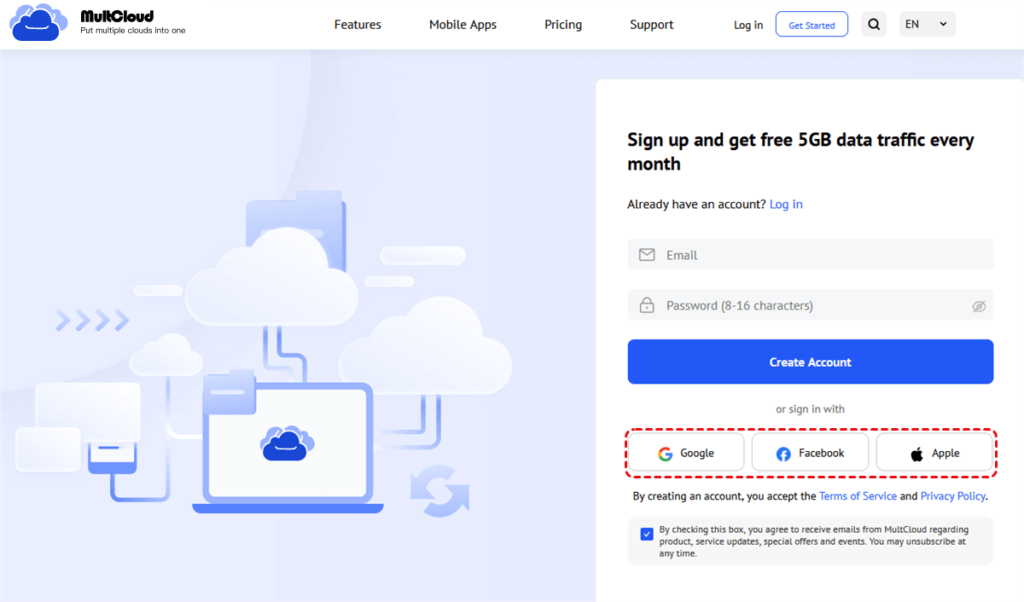
Step 1: Sign Up for MultCloud
Head over to MultCloud.com and create a free account. It takes just a minute.

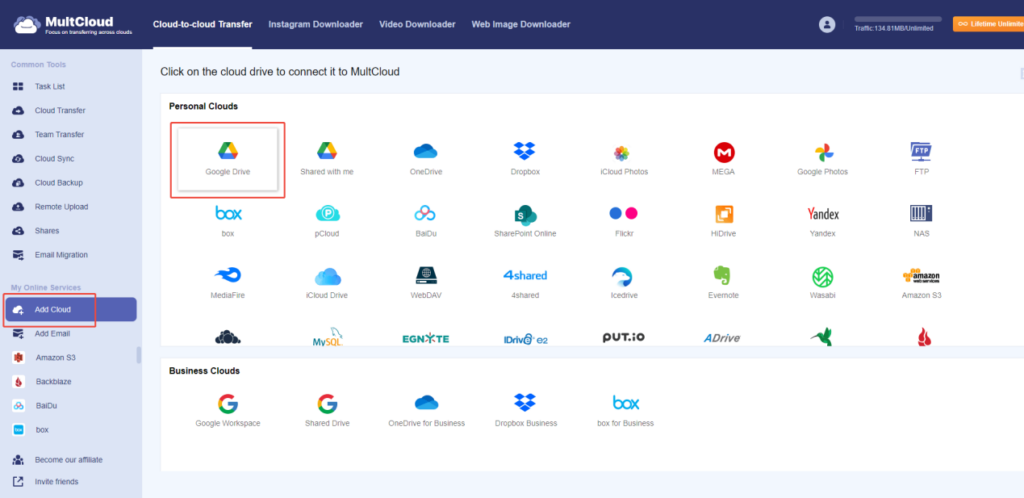
Step 2: Add Google Drive Accounts
After logging in, click on “Add Cloud”. Choose Google Drive and connect both the source and destination accounts.

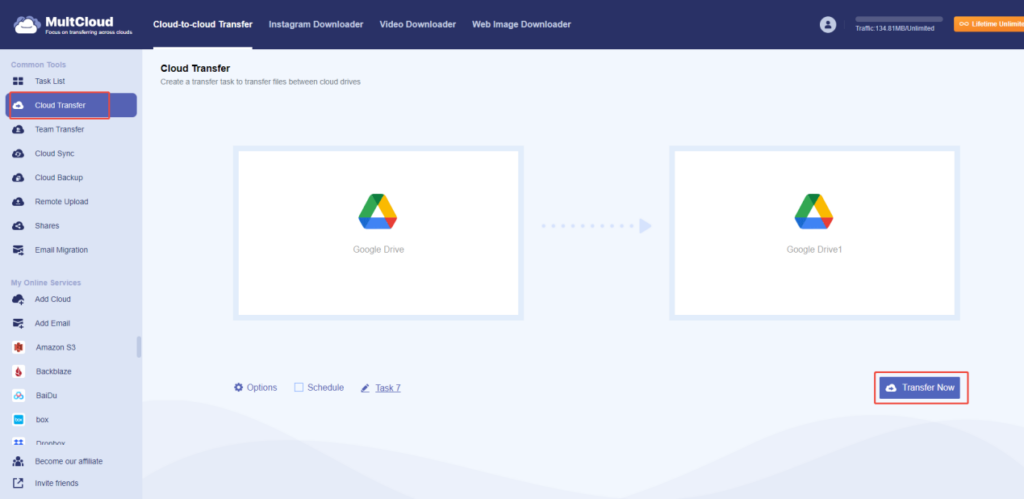
Step 3:
Click “Cloud Transfer” from the dashboard. Select your source Google Drive on the left and your destination Drive on the right.
Step 4: Start and Monitor the Transfer
Hit “Transfer Now” to start. You can also choose options like email notifications or file filtering to customize the process.

Tips for Smooth Transfers
Make your experience hassle-free with these quick tips.
Check Storage Limits
Make sure your destination Drive has enough room before initiating the transfer.
Use Scheduled Transfers
Need regular backups? Schedule transfers daily, weekly, or monthly.
Monitor File Integrity
Check the transfer logs afterward to ensure everything arrived safely.
Is MultCloud Safe to Use?
Security is key when moving sensitive data, and MultCloud takes it seriously.
Privacy Measures
MultCloud uses OAuth authorization, so your Google passwords are never stored.
Data Encryption
All transfers are encrypted using 256-bit AES encryption during transmission.
MultCloud Pricing Plans
Is it free? Mostly. But there are perks to going premium.
Free vs Premium
The free plan gives you 5GB of data traffic per month. Premium plans start with higher limits and faster transfer speeds.
Which Plan Is Right for You?
If you’re doing a one-time transfer, the free plan might be enough. For regular, large-scale transfers, premium is worth it.
Conclusion
Transferring files between Google Drives doesn’t have to be a pain. With MultCloud, you skip the downloads, avoid the stress, and move your digital world in just a few clicks. Whether you’re organizing files or managing multiple accounts, this tool makes it seamless and secure.

